
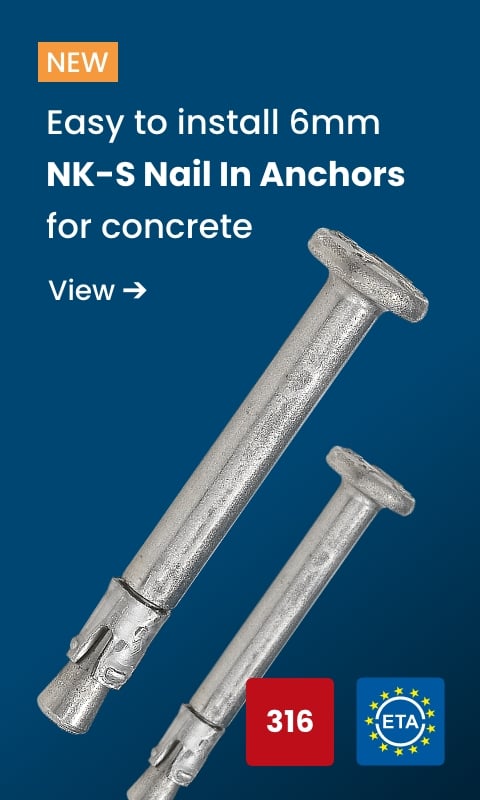
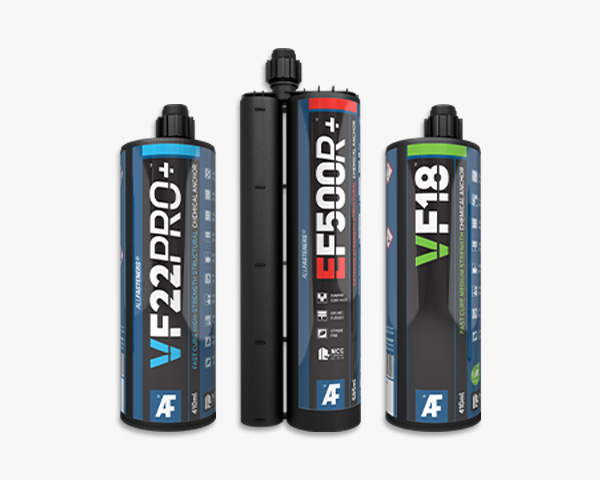

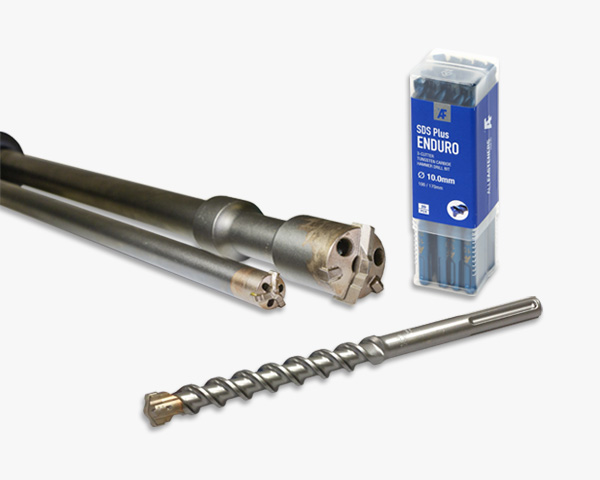
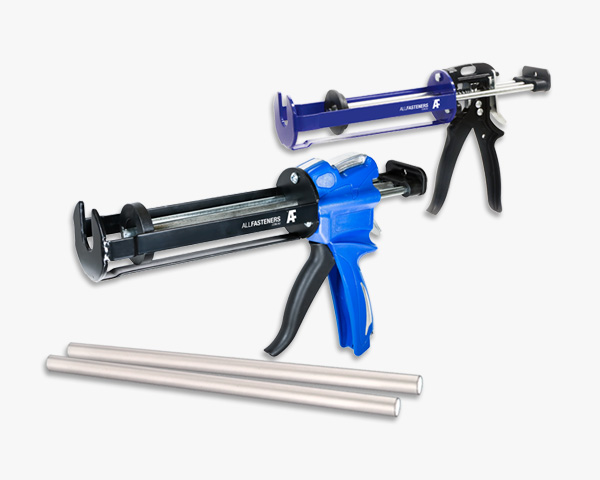



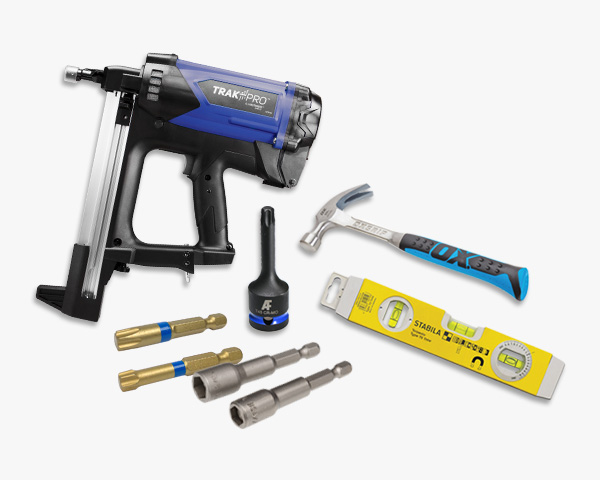


We stock a large range of industry standard tamper-proof fasteners for immediate delivery.
For ultimate security browse from the permanent one-way fixings and fasteners.
Retro fit fixings with security nuts, caps or enclosures.
Allfasteners Trade Portal gives you access to your account any time—day or night. Add staff as required to complete purchasing and or manage teams, with full overview or restricted access of your account activity. Your account is secure, with customisable permissions you can assign to individual staff members to perform a different roles and tasks.
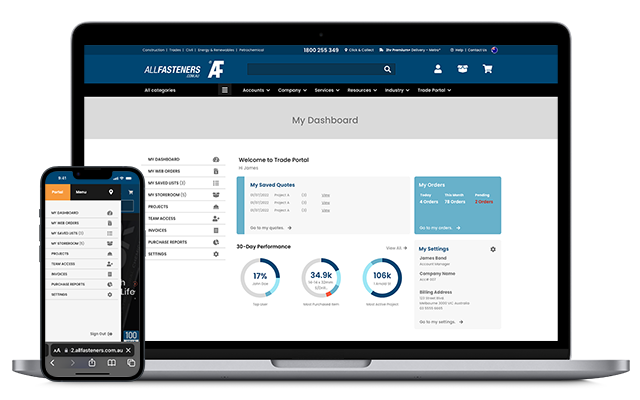
Allfasteners 30-Day Credit Account customers and COD Account customers are eligible for Trade Portal access. For each Trade Portal account only a single Portal Administrator will be assigned with full access privileges.
Once an Portal Administrator has been assigned he or she then can provide access to other staff assigning roles as Purchasers (default role) or as Portal Manager with more responsibilities.
Select a role type to learn what each can do via Trade Portal.
When your company first requests Trade Portal access, the person who submits that request is set up as your Portal Administrator by our team. Our team will contact customer directly if we have multiple applicants.
Features:
*Please note it is NOT a mandatory setting and by default this is set to no limit ($0.00). Please ensure Projects have a value entered to enable this feature.
We are constantly making minor updates and tweakes to Trade Portal with major changes listed below. Allfasteners is always listening its customers’ needs so if you are still have require some assistance with Trade Portal, please get in contact with us.
User Level: Portal Administrator
Adding a user to your Trade Portal can only be completed by the Portal Administrator within your company. This is the person who was requested the original setup.
Steps:
1. Ask the Portal Administrator to complete this via their login
2. Once logged in they will navigate to Team Access menu
3. Press 'Add User' button in top right corner
4. Enter new user details and temporary password.
5. The new user will be sent an email to set his or her password once new user is saved.
User Level: Portal Administrator and or Portal Managers
Steps:
1. Login into Dashboard and navigate to > Projects
2. Add or select existing Project
3. Look for the heading Project Configuration
4. Provide a dollar amount as the maximum order threshold
5. If required assign a Portal Manager to receive these order request via email
User Level: Account Manager and Project Managers
Steps:
1. Login into Dashboard and navigate to > Projects
2. Look for the orange button New Project
3. Add Project Name, this can be used to search later in the Purchasing Reports function
4. Add a site contact name and number. This will appear on check out and delivery dockets
5. Add site address information
6. Under Project Configuration you may set a maximum order threshold and assign a Portal Manager
User Level: Portal Administrator
Steps:
1. By default only Portal Administrators have access to Purchase Reports
2. If required they can set extra permission like view Invoices, Account Summary and Purchase Reports to other users
3. Request access from your Portal Administrator via their login
4. Once logged in they will navigate to Team Access menu
5. Select a user to edit the permissions granted.
6. Press update to save the configuration and advise user to log back in.